Leaderboard




Popular Content
Showing content with the highest reputation on 11/01/2025 in all areas
-
Staying cool and Hydrating are very important. The crowd of kids and parents thought I was bracing myself for "Hurricane winds" in this simulator. If you look closely at the video and pay attention to my movements. You can clearly tell I'm trying to cool myself off2 points
-
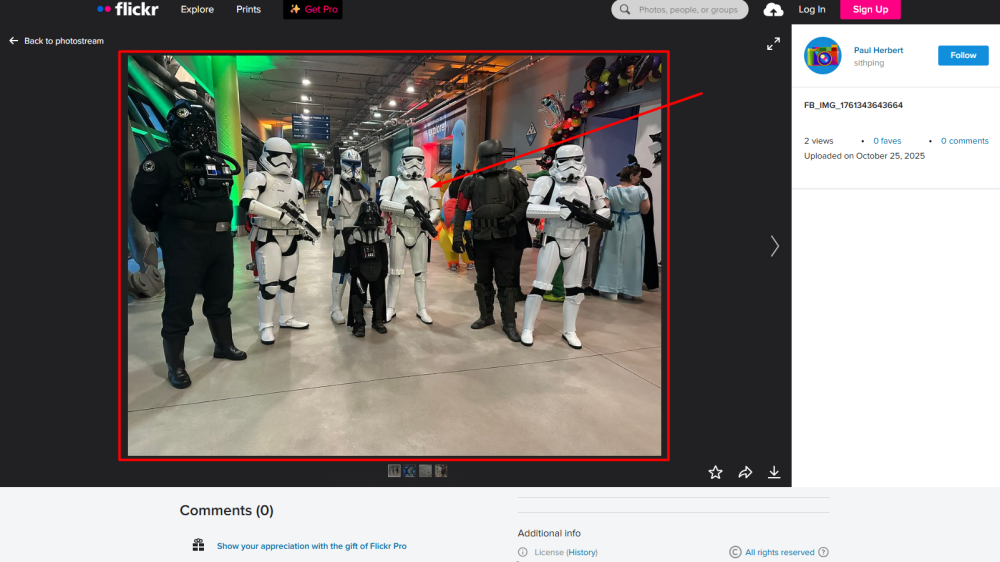
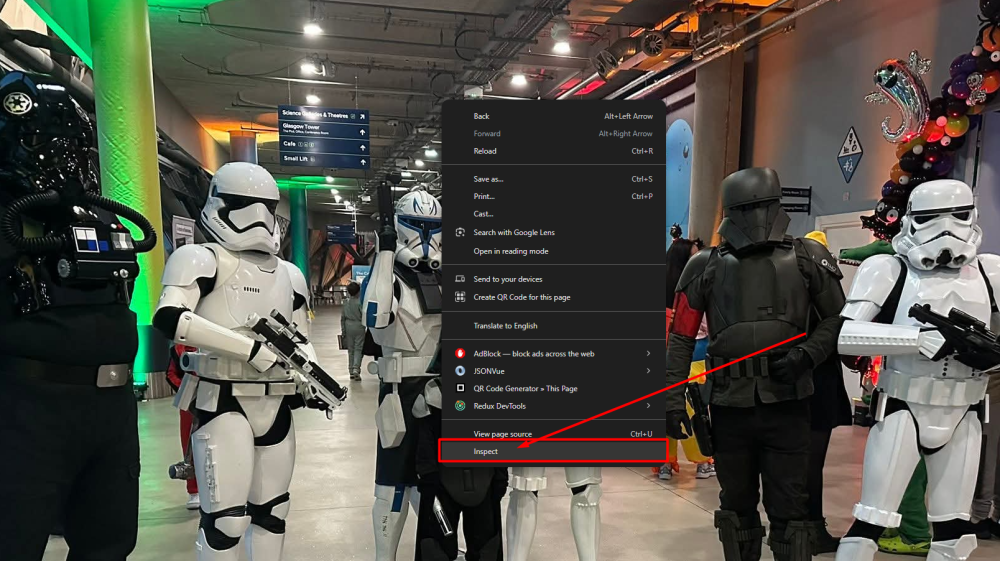
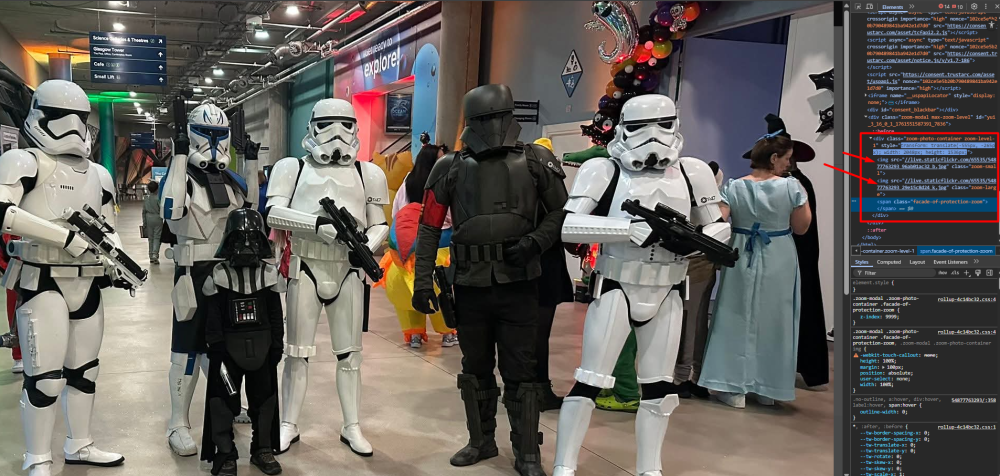
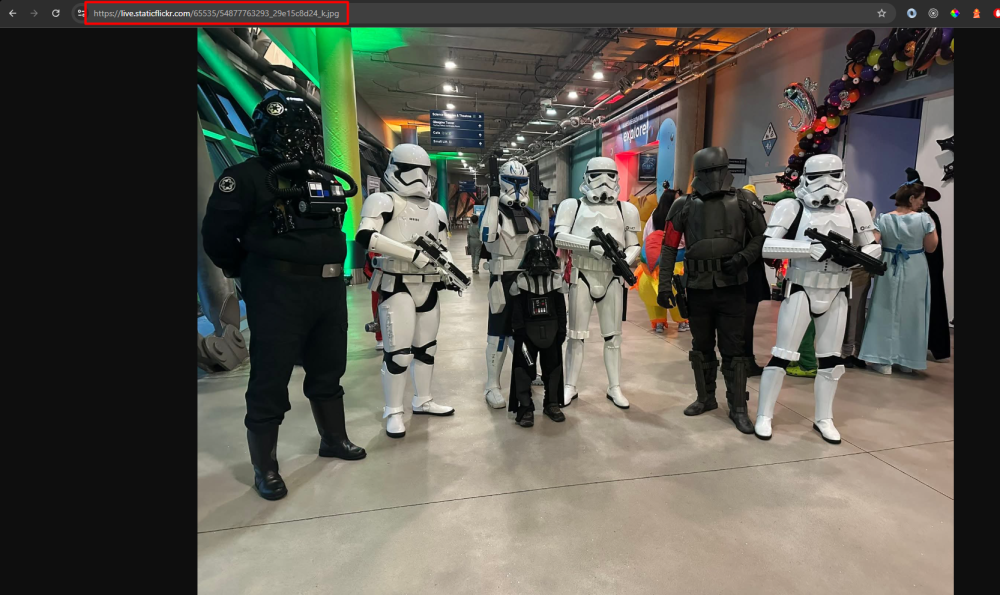
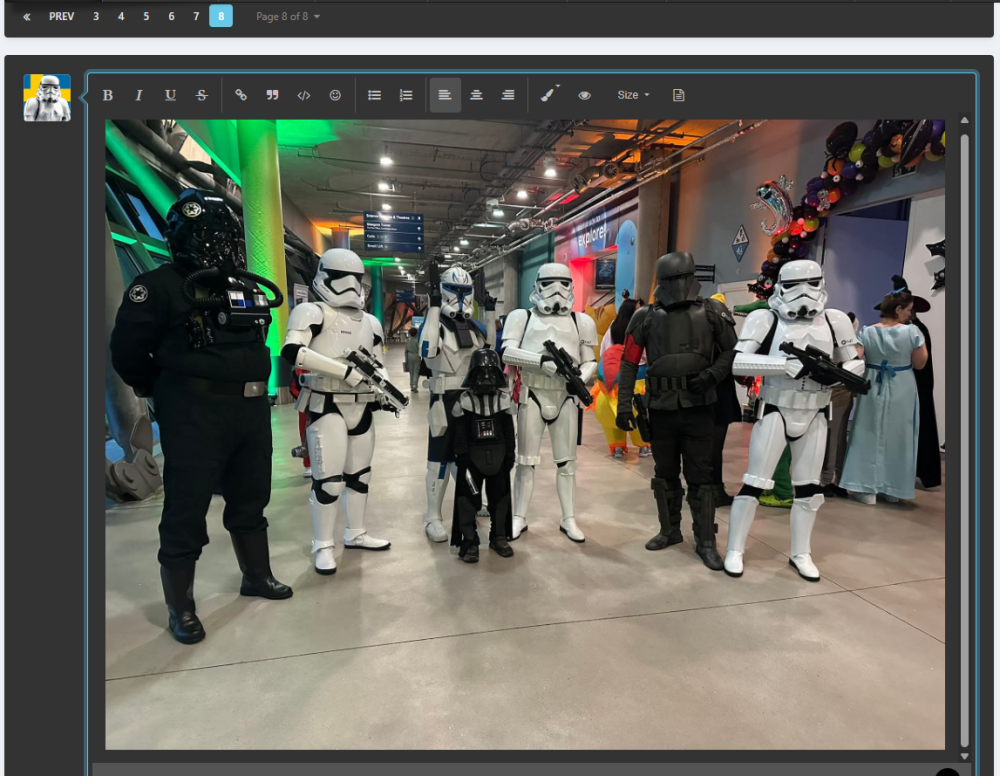
With imgur currently being blocked in the UK because of the data investigation that is going on, there is a way that you can get your photos into your posts! Some background information: What the forum needs to display an image in posts For an image to be displayed in posts on the forum, it needs an image url. When we drag images from our device into a post, the forum itself uploads that image and becomes the "host" of the image. We used to have very limited storage allocated to each account on the forum, that's why using imgur on the forum became a thing in the first place. When you upload an image to any platform e.g. Flickr, that platform becomes the host of your image, you take up storage on their servers. Every image has a link to where it can be accessed, this is called the "Image url". It's this "Image url" that we now need to go fetch from the Flickr platform, lets go!! We need to do a little more work here compared to the imgur tutorial, so sit down and get comfortable! Getting the Image url On your Flickr post. Click on the image you want to add to the forum - to zoom it. Right click on the enlarged image and press on "Inspect". This will open up the enlarged container, it holds the thumbnail image (the first in this container) and the original image (the second in this container). Double click on the second img src link to mark it, and press Ctrl+C/right click and choose "Copy" Open up a new tab in your browser, and paste the link in the Address bar. This will append "https:" to the front of your image url, since the image url that we copied in stage 4 just started with "//". Final step, copy the url from the Address bar and paste it to your post, and voila - you have an integrated image from Flickr! TL;DR (condensed version without images) On your Flickr post. Click on the image to zoom it. Right click on the enlarged image and press on "Inspect". This will open up the enlarged container Double click on the second img src link to mark it, and press Ctrl+C/right click and choose "Copy" Open up a new tab in your browser, and paste the link in the Address bar. Final step, copy the url from the Address bar and paste it to your post Thank you to Paul @Sithping for being the involuntary example in this guide! Example image from this troop log.

 1 point